
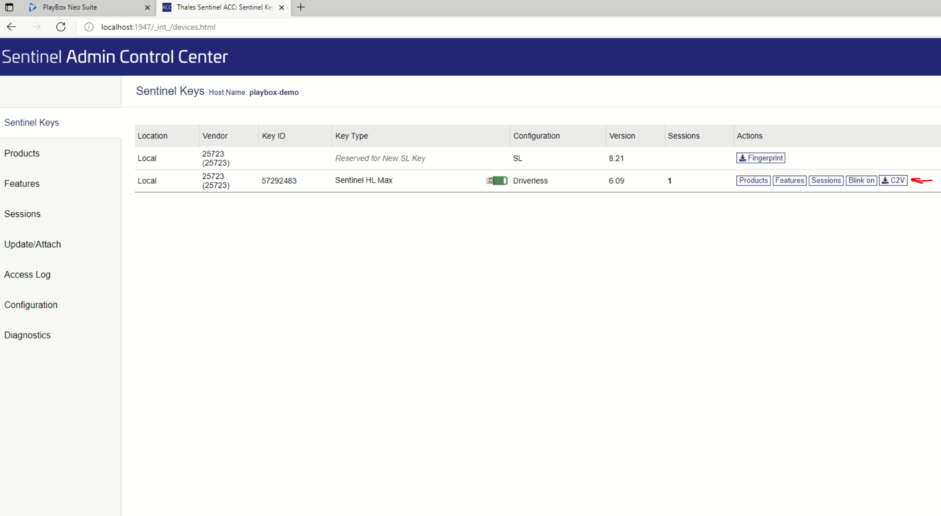
- Open Web browser. In URL address bar type http://localhost:1947
Sentinel Admin Control Center will appear.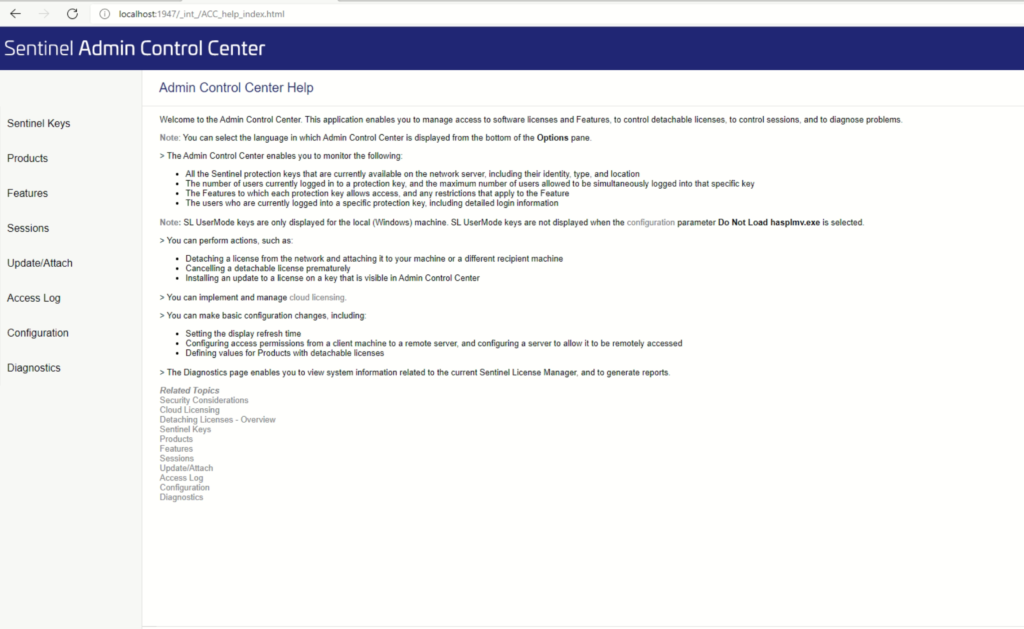
- On the left menu click on “Sentinel Keys”
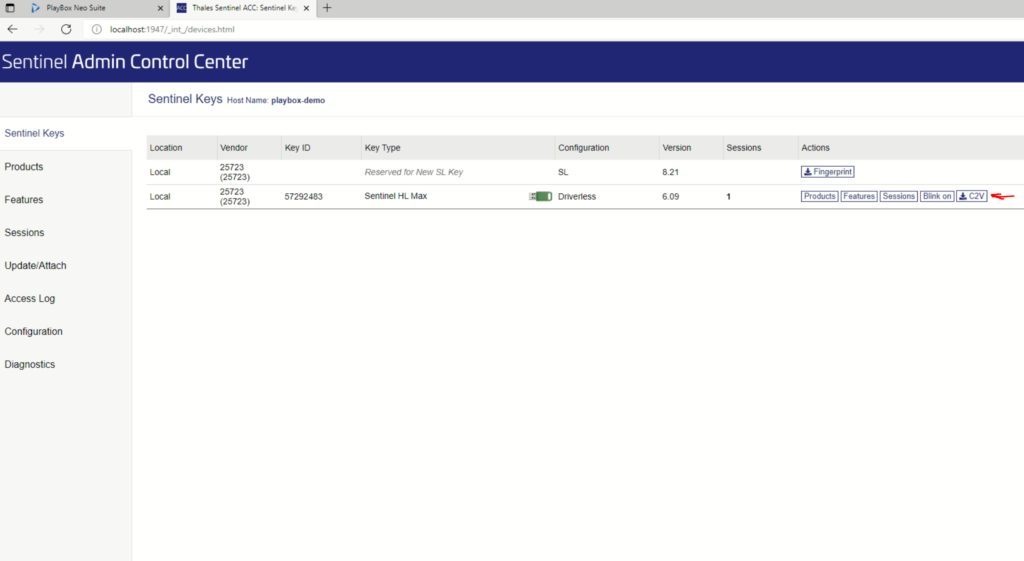
- Click on C2V button on the right to download control file
- File will be created and saved in your Downloads folder. Please send this C2V file when it is asked to PBT Adria Support team.
License update is in form of single *.V2C file and has name that corresponds to the SENTINEL-Key (for checking Sentinel number, click on Sentinel keys and see number in “Key Id” column). This file must be placed on the server where SENTINEL-Key with same serial number is connected.
- Open web browser. In URL address bar type http://localhost:1947
SENTINEL Admin Control center will appear. - On the left menu bar find “Update/Attach”
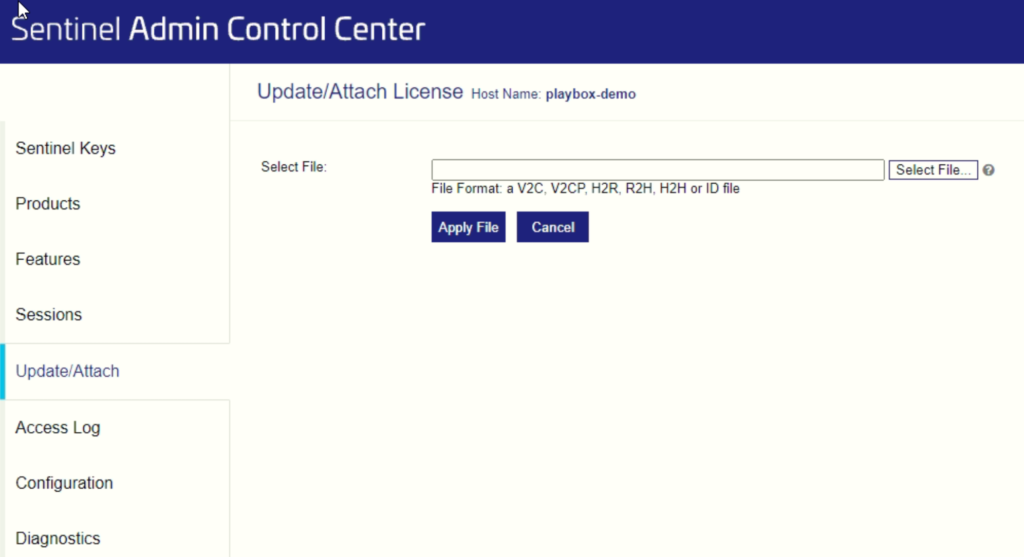
- Click on “Select File” and find appropriate *.V2C license file. When *.V2C file is selected click “OPEN” and then click “Apply File”
Note: Sentinel license updates MUST be performed in sequential order as they are issued ! If you are issued a new update, but you skipped to install previous one, you will get an error message.
***IF your server has active internet connection you can go to Welcome to the Sentinel LDK-EMS Customer Portal – License update tab and manually check for any skipped/missed updates for your license Key ID inside that server.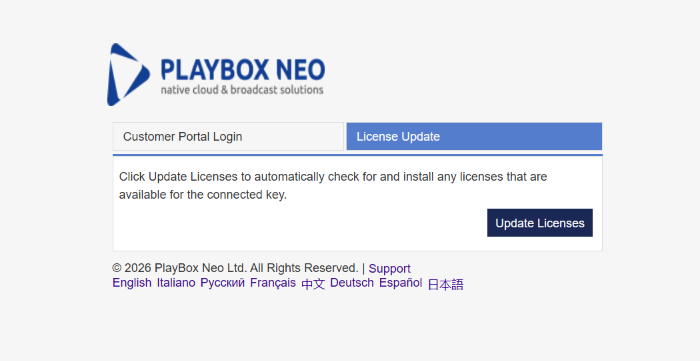
Depending on the WIBU driver installed on your system, there is a several methods for creating RTC (WBC) files:
1. Creating WBC file from desktop (for WIBU driver 6.30b)
– Click on desktop with the right mouse button
– From menu select New > WIBU Control File
– Select WibuBox Remote Programming Context file and click Create button
– File MyWibuBox.wbc is created on desktop
* Created file will contain information from all WIBU keys plugged into this server
2. Creating WBC file using WibuKey application (for WIBU driver 6.30b)
– In Control Panel launch the WibuKey applet. Make sure that your WIBU is visible in the WibuBox tree on the left
– Click on the icon in the window title bar (top left corner) and from the drop-down menu select Advanced mode
– Open WibuBox context tab. – Use arrow buttons in the middle to add or remove WIBU keys from the Selected WibuBoxes on the right. Only selected will be exported to file
– Click Browse button, then choose location, type the name for the WBC file and click Save
– Click Apply button to create file
* Created file will contain information from one or more WIBU keys plugged into this server, depending on your selection
3. Creating RTC file using WibuKey application (for older WIBU driver)
– In Control Panel launch the WibuKey applet. Make sure that your WIBU is visible in the WibuBox tree on the left
– Right-click on the window title bar and from the drop-down menu select Advanced mode
– Open WibuBox context tab. – Select WIBU key from the Selected WibuBoxes on the right
– Click Browse button, then choose location, type the name for the WBC file and click Save
– Click Apply button to create file
License update is in form of single *.RTU file (can be packed as *.ZIP archive) and has name that corresponds to the WIBU-Key or Dongle serial number that it is intended for. This file must be placed (unpacked) on the server where WIBU-Key or Dongle with same serial number is connected. Also, appropriate WIBU driver must be installed. Simply double click on the *.RTU file and following window will appear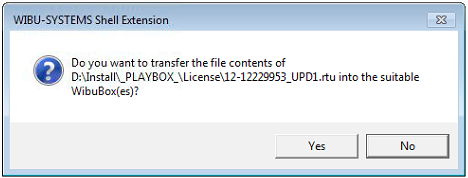 Click “Yes”. If everything is in order, you will see another pop-up window confirming process was successful.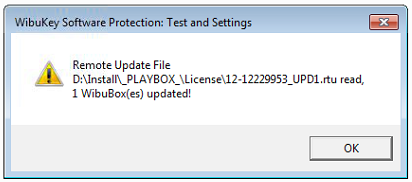
Note: WIBU license updates MUST be performed in sequential order as they are issued (UPD1, UPD2 UPD3 etc)! If you are issued a new update, but you skipped to install previous one, you will get an error message “failure to install”…